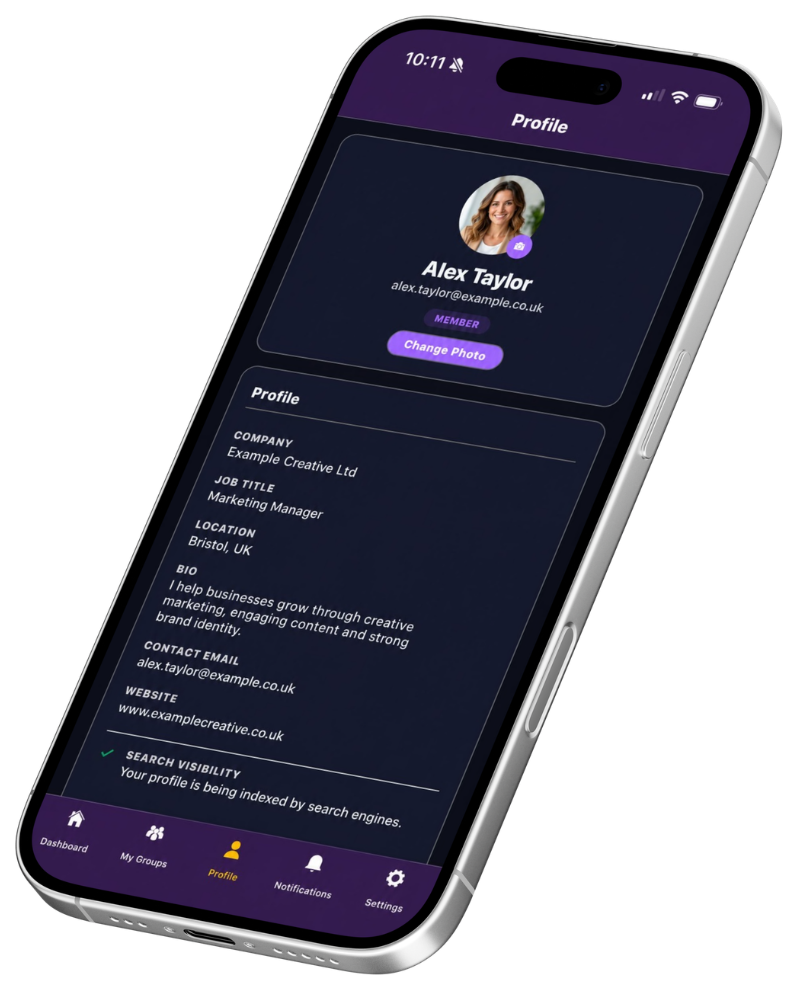
Members can update their own profile from the MyNetworx mobile app. Available fields include name, photo, company, job title, location, biography, contact email, phone, website and supported social links.
Only add information you are comfortable sharing through your public profile.
Your sign-in email and your public contact email can be different. The contact email field controls the address presented with your profile information.
Step by step
Edit your profile
-
Open your profile
Go to Profile and review the information currently displayed.
-
Select Edit Profile
The editable form opens with your existing professional details.
-
Update the relevant fields
Change only the information that needs attention.
You can also choose whether search engines are allowed to index the public profile.
-
Save your changes
Tap Save. The refreshed profile and public link will use the updated information.
Common questions
Before you begin
Can I change my profile photograph?
Yes. The profile screen provides a separate Change Photo action.
Does changing my details change the link I have shared?
No. Updating profile fields keeps the public profile available through its existing identifier.